
The Visual Editor (Blockly)
Building a query without writing code
RevOpsQL offers two ways to create a query:
| Mode | For whom | How |
|---|---|---|
| Visual editor | Beginners, occasional users | Drag and drop colored blocks |
| Text editor | Advanced users, complex queries | Type the SQL syntax directly |
These two modes are distinct and exclusive: a query is either entirely managed by the visual editor, or entirely written in text. Choose your mode upfront and stick with it.
Important: if you open the visual editor on an existing query, the Blockly workspace is the source of truth — not the SQL text. Any manual edits to the SQL text of a visual query will be ignored or overwritten the next time the visual editor is opened.
Opening the visual editor
On the query creation page, click the "Visual Query Editor" button. The interface opens in full screen.
Interface anatomy
The visual editor consists of three areas:
- Title bar: displays the SQL query generated by your blocks in real time — your instant preview.
- Toolbox (left): catalog of all available blocks, organized by category.
- Canvas (right): your workspace. Drag blocks from the toolbox and connect them.
The main block: FROM / SELECT / WHERE
When you open the editor, a root block is already present on the canvas — it cannot be deleted or moved. It represents the structure of the entire query.
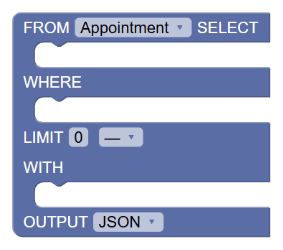
FROM: dropdown of all your HubSpot object types. Changing it automatically updates the available properties everywhere in the editor.
SELECT: area where you connect the property blocks to return.
WHERE: area where you connect condition blocks (filter groups).
LIMIT: enter a number and choose a sort order from the dropdown.
WITH: area where you connect association blocks.
OUTPUT: output format — JSON, CSV (ZIP), or Flat CSV.
Tip: The Flat CSV format (one row per associated object) requires a
TAKE 1 ORDER BYon each WITH block. The editor will automatically warn you if this constraint is not met.
Block categories
Query — Query structure
WITH ASSOCIATED block
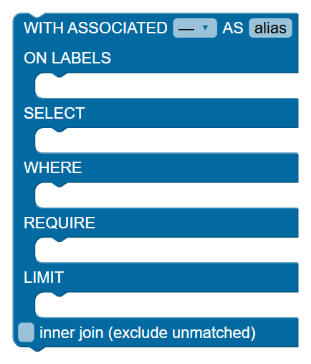
Adds an associated object type to the query. Configure the target object type, its alias, labels, WHERE filters, REQUIRE constraints, and TAKE sorting. The inner join checkbox excludes primary objects with no matching associated object.
Association label block
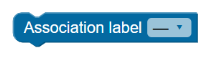
Connects into the ON LABELS slot of a WITH block. Filters associations by their HubSpot label. Available labels are automatically filtered based on the selected object pair.
SELECT — Properties to return
Property (main block)
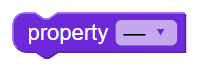
Connects into the SELECT slot of the main block. Select the property to include in the results. Add as many blocks as needed.
Property (WITH block)
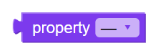
Connects into the SELECT slot of a WITH ASSOCIATED block. Same principle as the previous block, but for associated objects.
Object value

A property = value condition for object-oriented filters. Used in advanced selection contexts.
Object value (list item)

Stackable variant of the previous block, for building lists of object values.
Pipeline
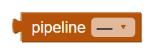
Selects a HubSpot pipeline. Used in pipeline-oriented conditions.
Pipeline (list item)
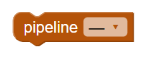
Stackable variant for pipeline lists.
Pipeline + Stage
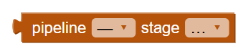
Selects a pipeline and a specific stage.
Pipeline + Stage (list item)
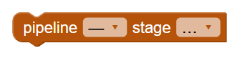
Stackable variant for pipeline and stage lists.
Conditions — Filters on the primary object
These blocks connect into the WHERE slot of the main block.
Filter group
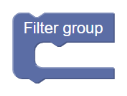
Groups multiple conditions joined by an implicit AND. Multiple groups in the WHERE are joined by OR. Connect condition blocks inside this group.
Simple comparison

Compares a property to a value using an operator (=, ≠, >, ≥, <, ≤, contains token…). Connect a value block into the right slot.
Between (range)

Checks that a property falls between two values (inclusive). Connect a value block into each of the two slots.
IN (value list)

Checks that a property is present in a list of values. Connect Value item blocks inside the block.
Has property (presence)
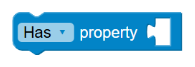
Checks whether a property is filled in (Has) or absent (Has not).
Date period
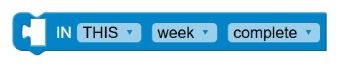
Filters by rolling period: choose THIS or LAST, the unit (week, month, quarter, year), and the variant (complete, so far). For a rolling window in days, use the LAST-N-DAYS value.
WITH Conditions — Filters on associated objects
These blocks are identical to the Conditions blocks, but in teal — they connect into the WHERE slot of a WITH ASSOCIATED block. They are evaluated client-side and support dynamic expressions (L1 and L2).
Filter group (WITH)
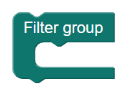
Same role as the Filter group, in the context of a WITH block.
Comparison (WITH)

Comparison on a property of the associated object. Accepts Expression blocks in the right slot for dynamic calculations.
Between (WITH)

Range on a property of the associated object.
IN list (WITH)
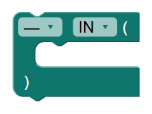
Value list on a property of the associated object.
Has property (WITH)
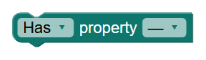
Presence or absence of a property on the associated object.
Date period (WITH)

Rolling period on a property of the associated object.
TAKE — Sorting and limiting associated objects
Connects into the LIMIT slot of a WITH ASSOCIATED block.
TAKE by date

Limits the number of returned associated objects with a date-based sort: recently modified, oldest modified, recently created, oldest created.
TAKE by property

Limits and sorts by property value (ASC or DESC). Choose the sort property from the dropdown.
REQUIRE — Constraints on the primary object
Connect into the REQUIRE slot of a WITH ASSOCIATED block. They filter the primary object based on the characteristics of its associated objects, without modifying the returned list.
REQUIRE COUNT
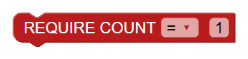
Requires a number of associated objects satisfying an operator (=, ≠, >, ≥, <, ≤).
REQUIRE COUNT BETWEEN

Requires that the number of associated objects falls between a minimum and a maximum (inclusive).
REQUIRE ANY / ALL / NONE — comparison

Requires that at least one (ANY), all (ALL), or none (NONE) of the associated objects satisfy a comparison condition. Connect an Expression block into the value slot.
REQUIRE ANY / ALL / NONE — list
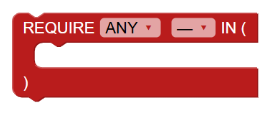
Same principle with a value list. Connect Value item blocks inside.
Expressions — Dynamic calculations
These blocks are used as the right-hand value in conditions of a WITH Conditions block.
Associated object property (L1)
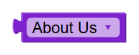
References a property of the current associated object. Used to compare two properties of the same object: amount > 0.1 * budget.
Primary object property (L2)
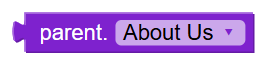
References a property of the primary object (with the parent. prefix). Enables cross-object comparisons: amount > 0.1 * parent.annual_revenue.
Arithmetic operation

Applies an arithmetic operator between two expressions: +, -, ×, ÷, integer division, modulo.
Negation

Reverses the sign of a numeric expression.
Single-argument function
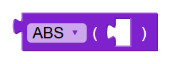
Applies a mathematical function: ABS, FLOOR, CEIL, ROUND.
Two-argument function
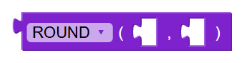
Functions requiring two parameters: ROUND(value, decimals) and COALESCE(value, default).
Values — Literal values
Text
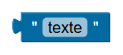
A quoted text value. Example: 'closedwon'.
Number

An integer or decimal numeric value.
Boolean
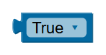
True or False.
Text (list item)
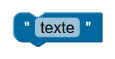
Stackable variant of text, for building lists used in IN blocks.
Number (list item)

Stackable variant of number, for IN lists.
Boolean (list item)

Stackable variant of boolean, for IN lists.
Properties come from your real schema
All property lists are loaded directly from your HubSpot portal.
When you select contact in the FROM block, the property dropdowns only show properties that actually exist on your contacts. It's impossible to enter an invalid property name.
Similarly, the association labels available in each WITH block are filtered based on the selected object pair (e.g.: company → contact).
Advantage: zero typos on property names. The visual editor eliminates at the source the most common cause of query failure.
Building your first visual query — step by step
Goal: "Companies with more than €1M in revenue along with their closed-won deals."
- In the FROM block, select
company. - Drag a Property (main block) block into the SELECT slot.
- From the Conditions category, drag a
Filter groupinto the WHERE slot. - Inside this group, drag a comparison block. Choose property
annualrevenue, operator>, and connect a Number block with value1000000. - From the Query category, drag a
WITH ASSOCIATEDblock into the WITH slot. Selectdeal, give it the aliaswon_deals, and check inner join. - In the WHERE slot of the WITH block, add a condition:
dealstage = 'closedwon'. - Watch the title bar update in real time.
- Click Apply.
Choosing between visual editor and text editor
Choose the visual editor if:
- You are new to RevOpsQL
- Your query stays within common use cases (filters, associations, REQUIRE)
- You want to be guided by the real properties of your portal
- You are sharing the query with non-technical colleagues
Choose the text editor if:
- You are comfortable with SQL syntax
- You need advanced dynamic expressions (
parent.annual_revenue,COALESCE,ROUND…) - You are copy-pasting a query from the documentation or another tool
Golden rule: never manually edit the SQL text of a query created in the visual editor. The displayed text is a generated representation — the source of truth remains the Blockly workspace. Any direct text modification would be lost the next time the visual editor is opened.